
How to change the position of an element without affecting the layout?
You might have many scenarios where you want to position an element within a page, a parent box, or within the nested structure of other elements. And you also don't want to affect the layout as a result of positioning.
In this case, you may use the position:absolute; property to position an element.
.positioned{
width:200px;
height:200px;
border:1px solid black;
position:absolute;
top:0px;
right:0px;
}

<div class="positioned">
</div>
Remember one thing that the current element will be positioned with respect to the parent box. But in this case, the parent element is your page screen.
Since you have applied position:absolute; property to the element. It can float freely and will not affect the layout. Now, you can position it with left, top, right, and bottom properties.
top, right, bottom, left properties represent the distance of the top, right, bottom, and left sides of the current element from the top, right, bottom, and left sides of the parent element, respectively.
Now, what if you have three nested boxes or elements. And you want to position the most inner child element as in the example given below.
.element1{
width:200px;
height:200px;
border:1px solid black;
position:absolute;
}
.element2{
width:150px;
height:150px;
border:1px solid black;
}
.element3{
width:30px;
height:30px;
border:1px solid black;
position:absolute;
right:0px;
bottom:0px;
}

<div class="element1">
  <div class="element2">
    <div class="element3">
	   box
    </div>
  </div>
</div>
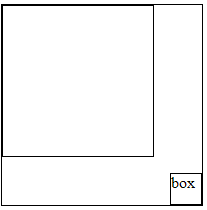
We have assigned the position property to the .element1 and .element3 class elements only. That's why the .element3 class element will be positioned with respect to .element1 class element and not with respect to .element2 class element. See the following image how the above example works.
It is not necessary that the parent element should have absolute value for the position. You may assign other values to the parent element such as relative, fixed.